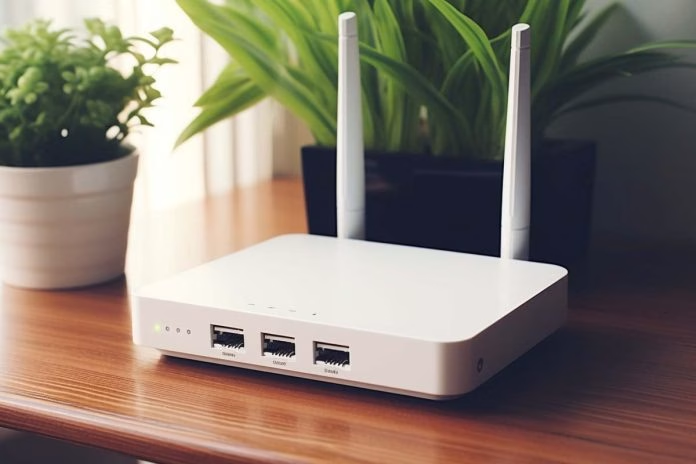

Your Wi-Fi router quietly runs your entire digital home. It connects your laptop, your phone, your TV, and probably a growing list of smart gadgets. Yet most people set it up once and never open its settings again. That habit leaves the door wide open for neighbors, opportunists, and automated attacks.
The good news is that you can secure your home Wi-Fi router in about ten minutes. You don't need technical skills or special tools. In this guide, you will change the default password, switch to modern encryption, turn off risky features, and create a guest network that keeps your most important devices safe.
Key Takeaways (TL;DR)
- Replace the default admin password first, because default logins are the easiest way into any router.
- Use WPA3 encryption (or WPA2/WPA3 mixed mode) with a long, unique passphrase of at least 12 characters.
- Turn off WPS, UPnP, and remote management unless you truly need them, and keep your firmware updated.
- Put visitors and smart home gadgets on a separate guest network so one weak device can't expose your computers and phones.
Why Your Router Is the Front Door to Your Digital Home

Think of your router as the front door of a house. Every piece of data that enters or leaves your home network passes through it. If someone controls the router, they can see where your traffic goes, change your settings, or reach the devices behind it.
What Can Go Wrong With an Unsecured Router
An unsecured router invites several kinds of trouble. Some are minor annoyances, while others are serious privacy risks:
- Bandwidth theft: Neighbors or strangers use your connection and slow it down.
- Snooping: Attackers on your network can try to intercept unencrypted traffic.
- Device attacks: Weak smart gadgets, such as cheap cameras or plugs, become easy targets once someone is inside.
- Settings hijacks: An intruder can change your DNS settings and quietly redirect you to fake websites.
Why Default Settings Are Not Enough
Many routers still ship with settings that favor convenience over security. Older models often use generic admin logins, while some enable features like WPS by default. Manufacturers do this so the setup "just works" out of the box.
However, convenience for you also means convenience for attackers. Default settings are well documented online, and automated tools scan for them constantly. As a result, a router left on factory settings is a predictable target.
The steps below fix the most common weaknesses. Each one takes only a minute or two. Together, they turn your router from an open door into a locked one.
Step 1: Log In and Replace the Default Admin Password

Before you change anything, you need to reach your router's admin panel. This is the control center for every setting in this guide.
How to Find Your Router's Admin Page
Most routers use a local web address such as 192.168.0.1 or 192.168.1.1. Check the sticker on the bottom or back of your router, because it usually lists the address and the default login. Many newer routers also use a companion mobile app instead of a browser page.
To log in, follow these simple steps:
- Connect to your Wi-Fi network or plug in with an Ethernet cable.
- Open a web browser and type the address from the sticker.
- Enter the default username and password, or open the manufacturer's app.
Why the Admin Password Matters Most
Many people confuse two different passwords. The Wi-Fi password lets devices join your network. The admin password, on the other hand, lets someone change the router's settings. If an attacker guesses the admin password, every other protection becomes meaningless.
Older routers often used simple combinations like "admin" and "password." Lists of these defaults are freely available online. Therefore, changing this password is the single most important step you can take.
How to Create a Strong Admin Password
Look for a section called "Administration," "System," or "Management." Then replace the default with a long, unique password. A good approach is a passphrase made of four or five random words, such as "lantern-pickle-orbit-meadow."
Finally, store the new password in a password manager. You will rarely need it, so writing it down safely beats trying to remember it.
Step 2: Switch to WPA3 Encryption and a Strong Wi-Fi Passphrase
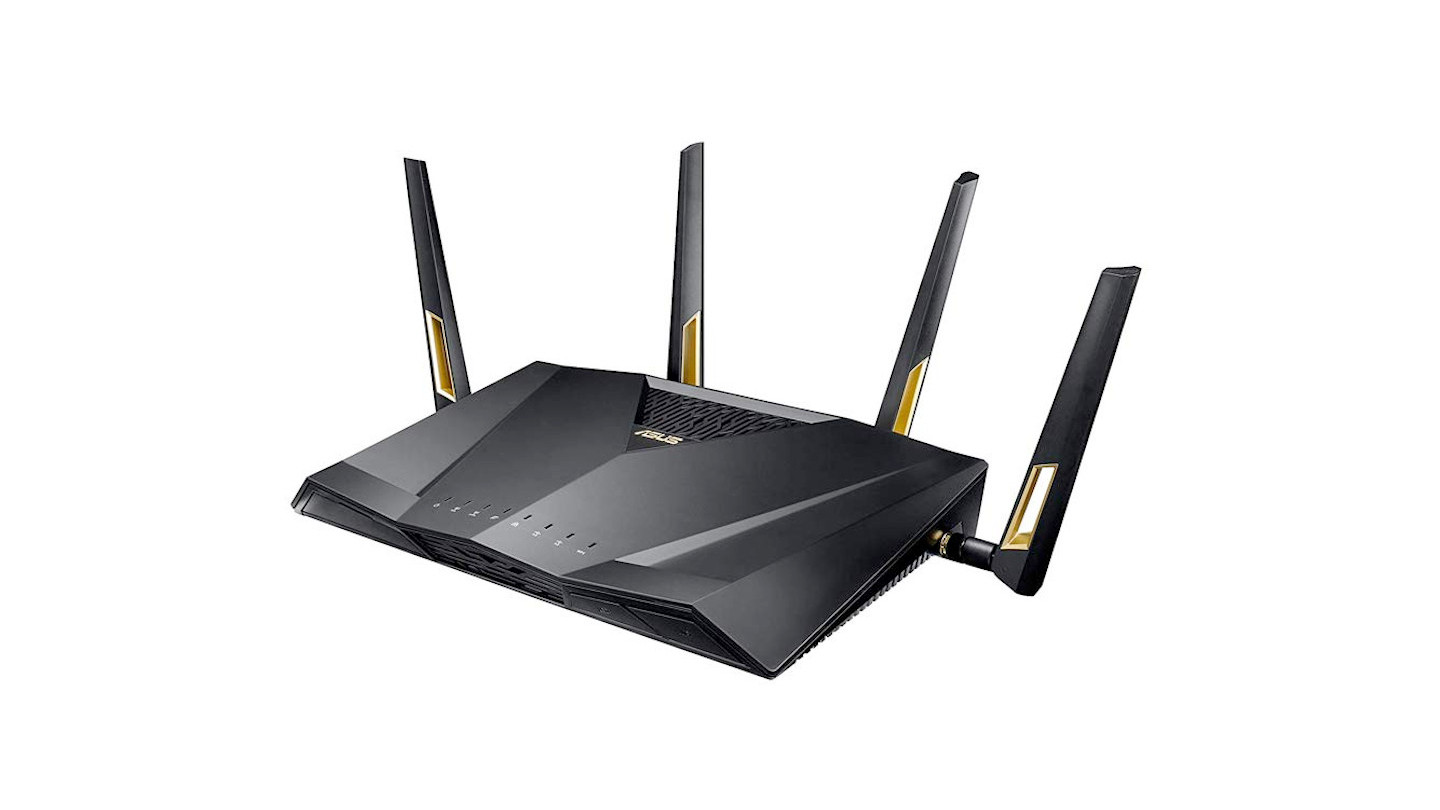
Encryption scrambles the data that travels between your devices and your router. Without it, anyone nearby could read your traffic. The type of encryption you choose makes a big difference.
What Is WPA3 and Why Does It Matter?
WPA3 is the newest Wi-Fi security standard from the Wi-Fi Alliance, the industry group that certifies Wi-Fi products. Since July 1, 2020, new devices submitted for Wi-Fi certification must support it. It is also a baseline requirement for Wi-Fi 6 and newer certified devices.
The biggest upgrade in WPA3-Personal is a handshake called SAE (Simultaneous Authentication of Equals). It replaces the older pre-shared key handshake used by WPA2. In simple terms, SAE makes it much harder for attackers to capture your connection and guess your password offline, even when the password is fairly weak.
Which Security Mode Should You Choose?
Open the "Wireless" or "Wi-Fi Security" section of your router. Then pick the best option your devices support:
- WPA3-Personal: The best choice if all your devices support it.
- WPA2/WPA3 mixed (transition) mode: A practical choice when some older devices only support WPA2.
- WPA2-Personal (AES): Acceptable for older routers that lack WPA3.
- WEP, WPA, or "Open": Avoid these completely, because they offer little or no real protection.
How to Choose a Strong Wi-Fi Passphrase
Even with WPA3, a strong passphrase still matters. Aim for at least 12 characters, and longer is better. Avoid your address, pet's name, or phone number.
Keep in mind that changing the Wi-Fi password disconnects every device. Therefore, plan a few minutes to reconnect your phones, laptops, and TV with the new passphrase.
Step 3: Turn Off WPS, UPnP, and Remote Management

Routers include several convenience features that many households never use. Unfortunately, some of them create security holes. Turning them off takes seconds and removes entire categories of attacks.
Why You Should Disable WPS
WPS (Wi-Fi Protected Setup) lets devices connect with a button press or an 8-digit PIN. It sounds handy, but the PIN method has a serious design flaw. The router checks the PIN in two separate halves, which cuts the number of possible guesses to roughly 11,000.
Security researcher Stefan Viehböck disclosed this flaw in December 2011. Soon after, free tools appeared that could automate the guessing. Then, in 2014, researcher Dominique Bongard revealed the "Pixie Dust" attack. It exploited weak random number generators in some router chips and could recover the PIN offline, sometimes in seconds.
For these reasons, security experts widely recommend disabling WPS entirely. Look for a "WPS" toggle in your wireless settings and switch it off.
Should You Turn Off UPnP?
UPnP (Universal Plug and Play) lets devices on your network open ports on the router automatically. Game consoles and some apps use it to simplify connections. However, a compromised device can also use UPnP to expose itself to the internet without your knowledge.
If you don't rely on online gaming or similar apps, turn UPnP off. If something stops working afterward, you can re-enable it or set up a specific port rule instead.
Disable Remote Management
Remote management lets you change router settings from outside your home. Unless you truly need it, switch it off. This way, only devices inside your home can reach the admin panel.
Step 4: Update Your Router Firmware and Rename Your Network
Firmware is the built-in software that runs your router. Like the apps on your phone, it needs regular updates to fix bugs and close security holes.
Why Firmware Updates Matter
Researchers keep finding new weaknesses in Wi-Fi technology. Even modern standards are not perfect. For example, in 2019, researchers Mathy Vanhoef and Eyal Ronen published the "Dragonblood" research, which revealed flaws in early WPA3 implementations. Vendors responded with patches, but those fixes only protect routers that actually install them.
To update your router, open the "Firmware," "Update," or "System" section of the admin panel. Then follow these steps:
- Check for a new version and install it if one is available.
- Turn on automatic updates if your router offers them.
- Avoid unplugging the router during an update, because that can damage it.
If your router no longer receives updates from the manufacturer, consider replacing it. An unsupported router stays vulnerable to every flaw discovered after its last patch.
Give Your Network a Neutral Name
Your network name, or SSID, is visible to everyone nearby. Names like "Smith Family" or "Apartment 4B" reveal personal details. Likewise, keeping a default name such as a router model number tells attackers exactly which device you own.
Instead, choose a neutral name that doesn't identify you, your address, or your router brand. Something simple and unique works perfectly.
A Note on Hiding Your Network
Some guides suggest hiding your SSID. In practice, this offers little real protection, because hidden networks can still be detected with common tools. It can also make connecting your own devices more frustrating. Strong encryption and a good passphrase protect you far better.
Why a Guest Network Protects You From Risky Smart Devices

So far, you have locked the front door. Now it's time to think about who and what you let inside. This is where a guest network becomes one of your most powerful tools.
What Is a Guest Network?
A guest network is a separate Wi-Fi network created by your router. It shares your internet connection but keeps its devices apart from your main network. Most modern routers include this feature, often with an option called client isolation or AP isolation.
With isolation turned on, guest devices can reach the internet, but they cannot see your laptop, your network storage, or your phone. In other words, a guest gets a room with a view, not keys to the whole house.
Why Smart Gadgets Belong on a Separate Network
Smart home devices are wonderful, but many have weak security. Some cheaper models receive few firmware updates, use outdated software, or come from manufacturers that stop supporting them quickly. As a result, a single vulnerable camera, plug, or light bulb can become an entry point into your home network.
If that gadget sits on your main network, an attacker who takes it over may be able to reach your computers. On a guest network, however, the damage stays contained. The compromised device can't easily reach your sensitive data.
Guests Bring Unknown Devices, Too
Visitors also connect phones and laptops that you don't control. Those devices might carry malware without their owners knowing. A guest network lets you share your internet generously while keeping your own devices out of reach.
How to Set Up a Guest Network for Visitors and IoT Gadgets
Setting up a guest network usually takes two or three minutes. The exact menu names vary by brand, but the process is similar on most routers.
Step-by-Step Guest Network Setup
- Open your router's admin panel or mobile app.
- Find the "Guest Network," "Guest Wi-Fi," or "Guest Access" section.
- Turn the guest network on and give it a clear name.
- Select WPA3 or WPA2/WPA3 security, and set a separate passphrase.
- Enable client isolation and disable access to local network resources.
- Save your settings and connect a test device.
Tips for Moving Smart Devices
Smart gadgets need extra planning, because each one must reconnect to the new network. Start with devices you consider least trustworthy, such as budget cameras, smart plugs, and streaming sticks.
Keep in mind that many smart devices only support the 2.4 GHz band. If a gadget can't find your guest network, make sure the guest network broadcasts on 2.4 GHz. Also, a few devices need to "see" your phone on the same network during setup. In that case, connect your phone to the guest network temporarily while you finish pairing.
Consider Two Guest Networks
If your router supports more than one guest network, use one for visitors and another for smart devices. This separation keeps visitor devices away from your gadgets as well. Additionally, you can change the visitor password regularly without having to reconnect every smart device in your home.
Frequently Asked Questions (FAQ)
How do I know if my router supports WPA3?
Open the wireless security settings in your router's admin panel. If you see "WPA3-Personal" or "WPA2/WPA3" in the security menu, your router supports it. If not, check for a firmware update, because some manufacturers added WPA3 support to existing models later.
Will disabling WPS stop my devices from connecting?
No. Your devices will still connect normally using your Wi-Fi passphrase. You will simply lose the push-button or PIN shortcut. For most households, typing a password once per device is a small price for better security.
Does a guest network slow down my internet?
A guest network shares the same internet connection as your main network. It does not reduce your speed by itself. However, heavy use by many guest devices can affect overall bandwidth, just as it would on any single network.
How often should I change my Wi-Fi password?
There is no strict rule. Change it whenever you suspect someone unwanted has access, after sharing it widely, or when someone moves out. For your guest network, changing the password periodically is a smart and easy habit.
Conclusion
Securing your home Wi-Fi router doesn't require expert knowledge. In about ten minutes, you can replace the default admin password, switch to WPA3, and disable risky features like WPS, UPnP, and remote management. A quick firmware update and a neutral network name complete the foundation.
The guest network is the final, powerful layer. It keeps visitors and vulnerable smart gadgets away from the devices that hold your most personal data. Set a reminder to check your router settings every few months, and you'll keep your digital front door firmly locked.
Watch These Quick Wi-Fi Security Tips in Action
Now that you know which settings matter most, it helps to see them in action. The short videos below show how a guest network shields your main devices from hacking attempts and share practical, bite-sized tips for protecting and securing your Wi-Fi at home.
Pioneering Wi-Fi Security Researcher and Acclaimed KU Leuven Professor
- Author Name: Mathy Vanhoef
- About: Computer security researcher and professor at KU Leuven (DistriNet research group) who discovered the KRACK attacks on WPA2, co-authored the Dragonblood analysis of WPA3, and revealed the FragAttacks Wi-Fi vulnerabilities.
- Website: https://www.mathyvanhoef.com
- Social links: X (Twitter), Google Scholar, GitHub